01
Create
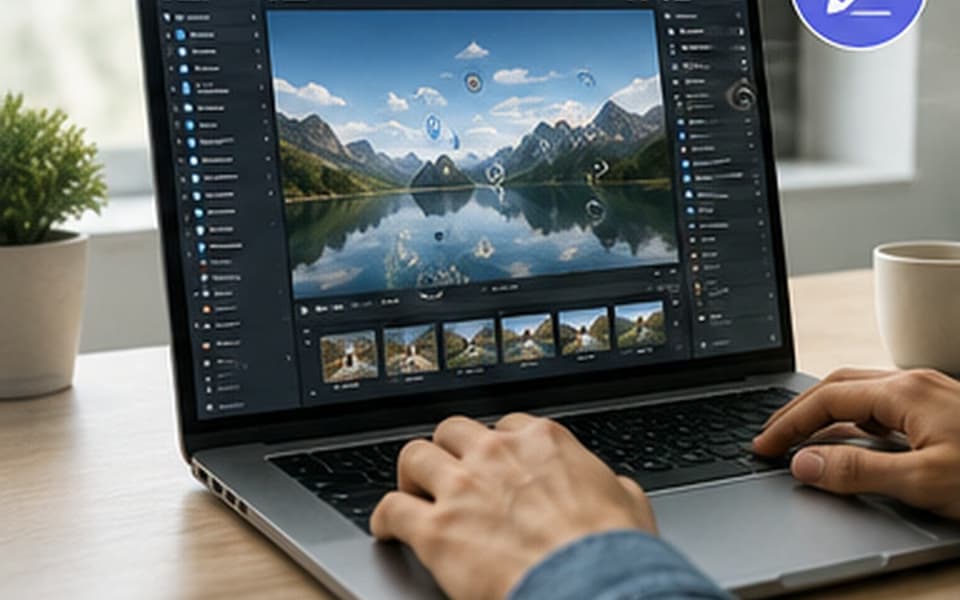
Import 360° images or video, then add multimedia, narration, interactions, navigation, information, and quizzes to build the experience.
Import media. Add interactions. Create quizzes.
MySense-VR
MySense-VR gives teachers and students a simple way to create immersive learning experiences using 360° images and video, multimedia, narration, interactions, and quizzes. Build on a computer, transfer directly to the headset, and experience the finished project in VR.
Simple by design
Three clear steps keep the technology in the background so teachers and students can focus on the idea, the story, and the learning.
Import 360° images or video, then add multimedia, narration, interactions, navigation, information, and quizzes to build the experience.
Import media. Add interactions. Create quizzes.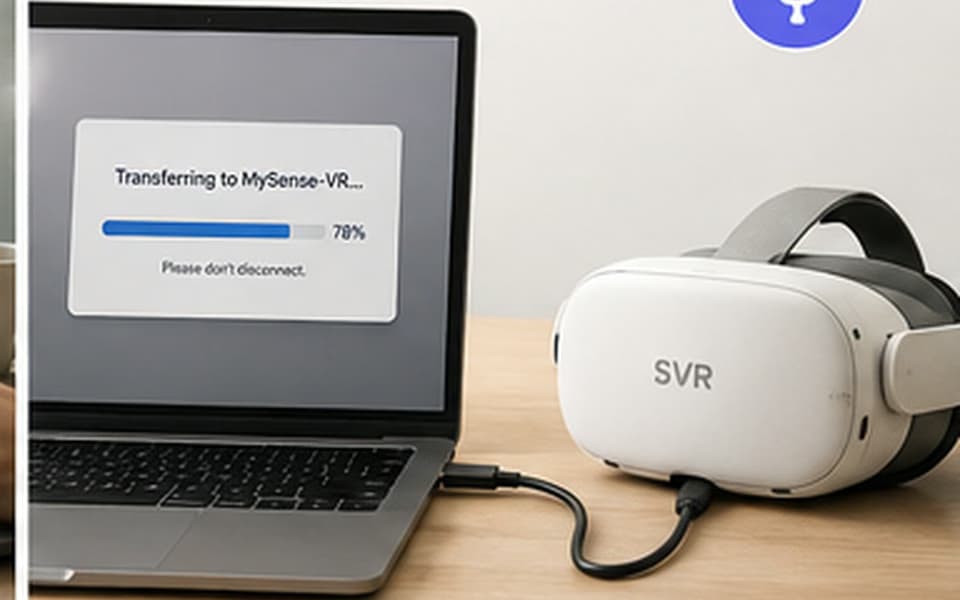
Connect the computer and SVR headset by USB-C, then transfer the finished project directly to the device.
Connect by USB-C. Transfer directly.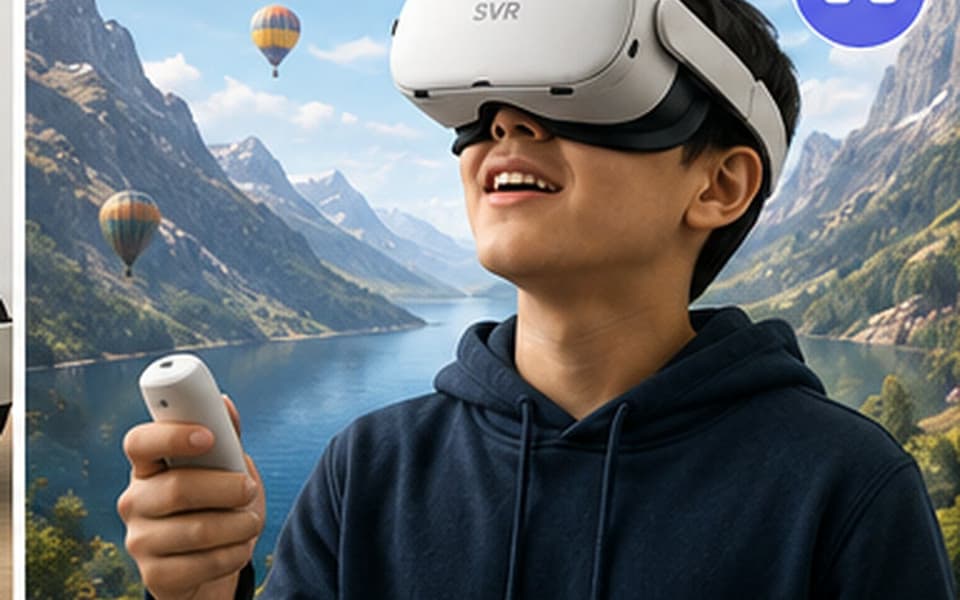
Open the finished project directly in VR. Once it is on the headset, the cloud is not required for delivery of the learning experience.
Put on the headset. Experience it in VR.Created by you. Offline.
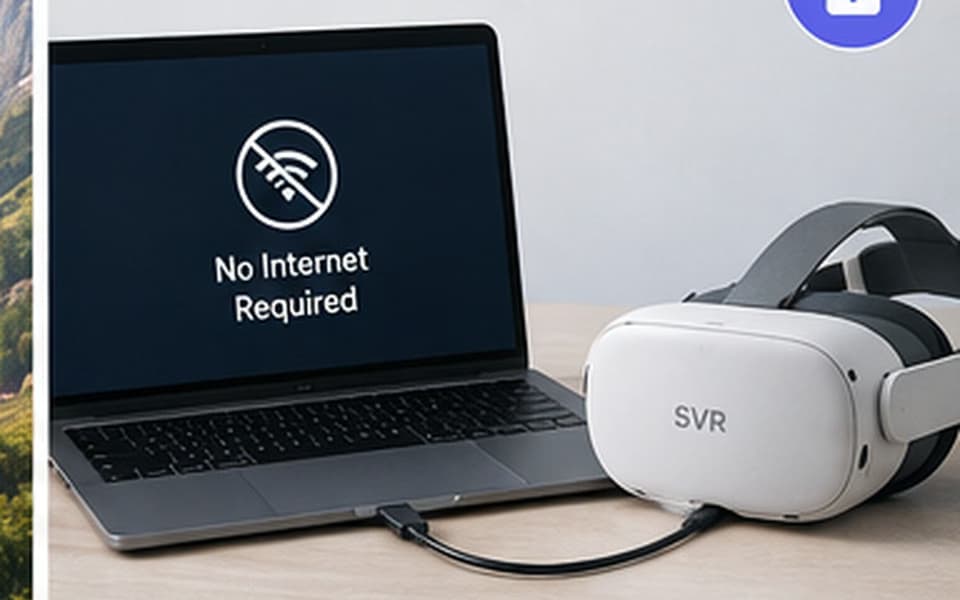
Create the project on a computer, transfer it directly to the headset, and use it without relying on the cloud for the learning experience.
Direct deployment means a finished lesson does not depend on a fast connection, a crowded network, or another upload and download cycle before a learner can use it.
Creation as learning
Start with a 360° image or video, then use multimedia, narration, questions, and navigation to turn an idea into an experience another learner can explore.
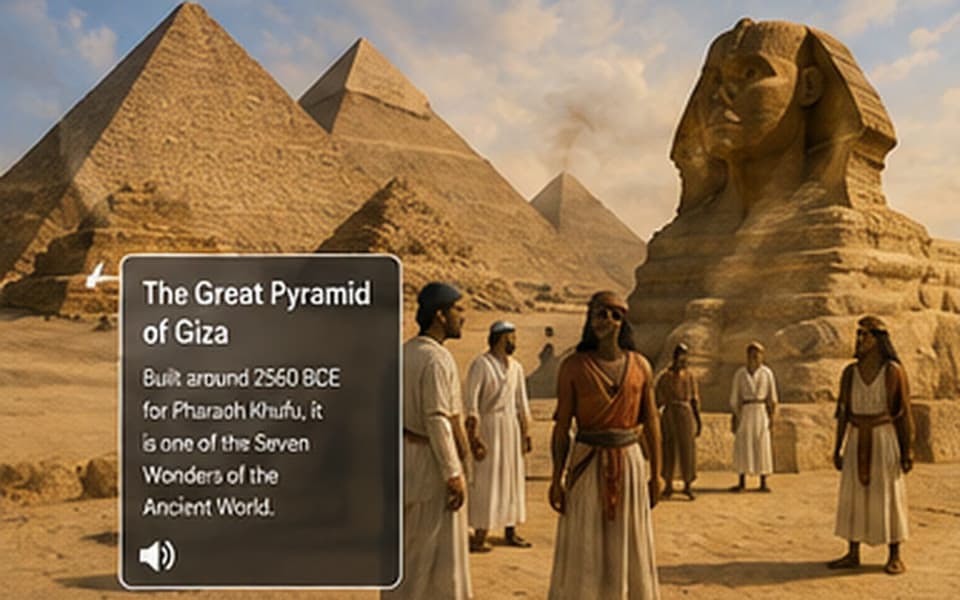
Rebuild a moment in time with 360° scenes, historical images, narration, documents, and questions that help another learner follow the story.
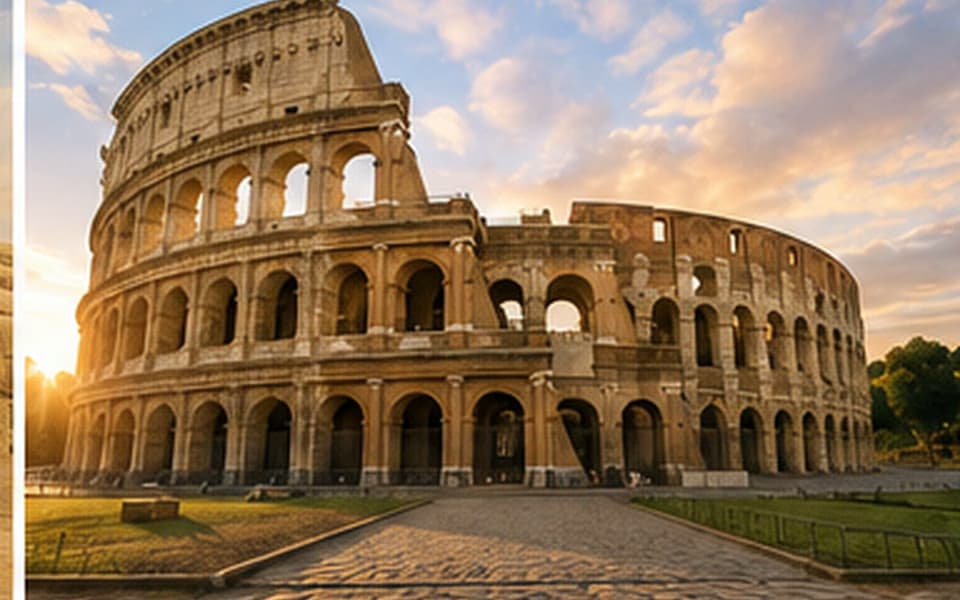
Document a school, local area, field trip, museum, landmark, or other place and turn it into a guided immersive visit.
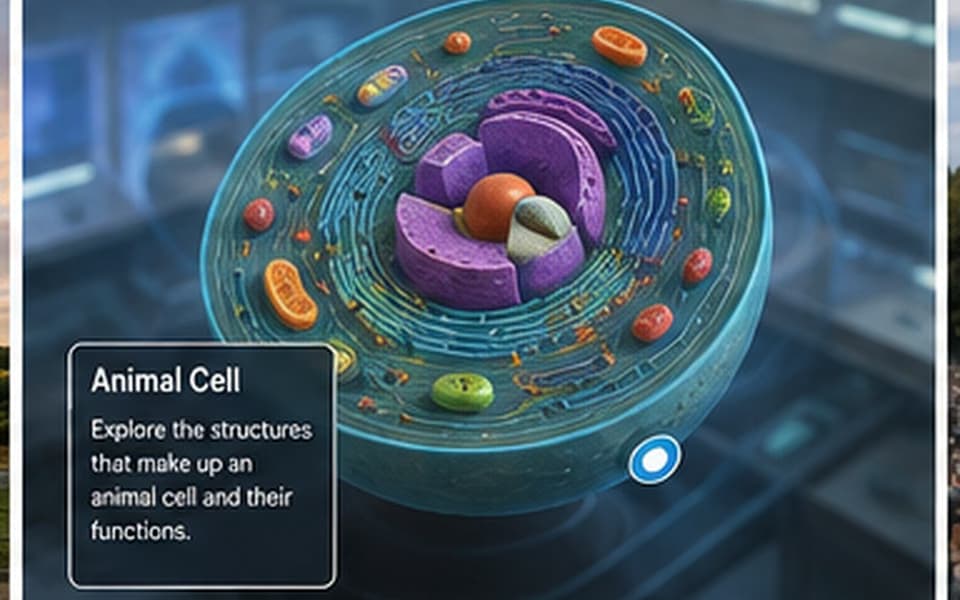
Explain a process, environment, investigation, or difficult concept using media, labels, audio, and checks for understanding.

Create a biographical journey around a scientist, artist, historical figure, inventor, athlete, or other influential person.
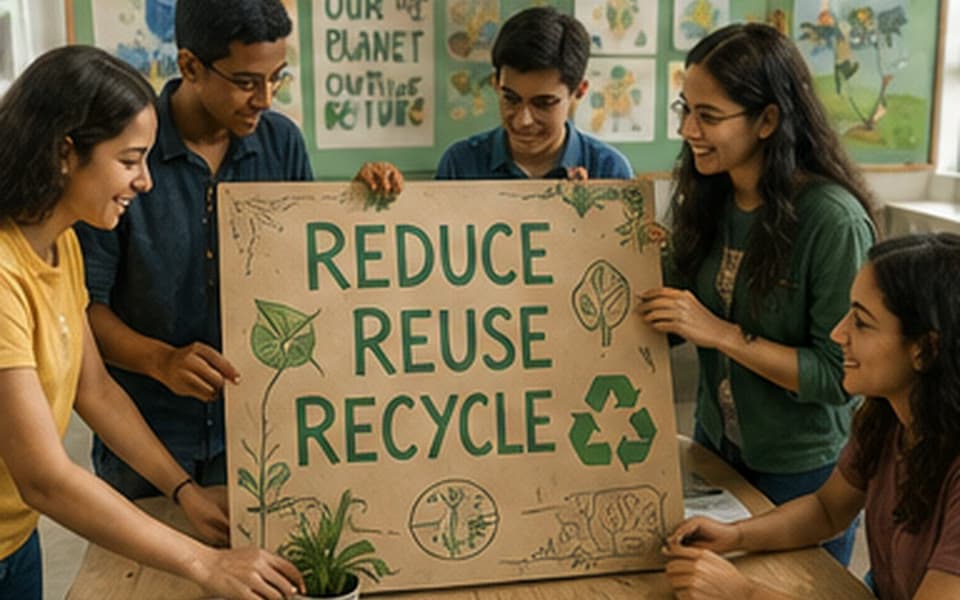
Create anti-bullying, wellbeing, safety, belonging, environmental, or awareness projects that other students can experience.
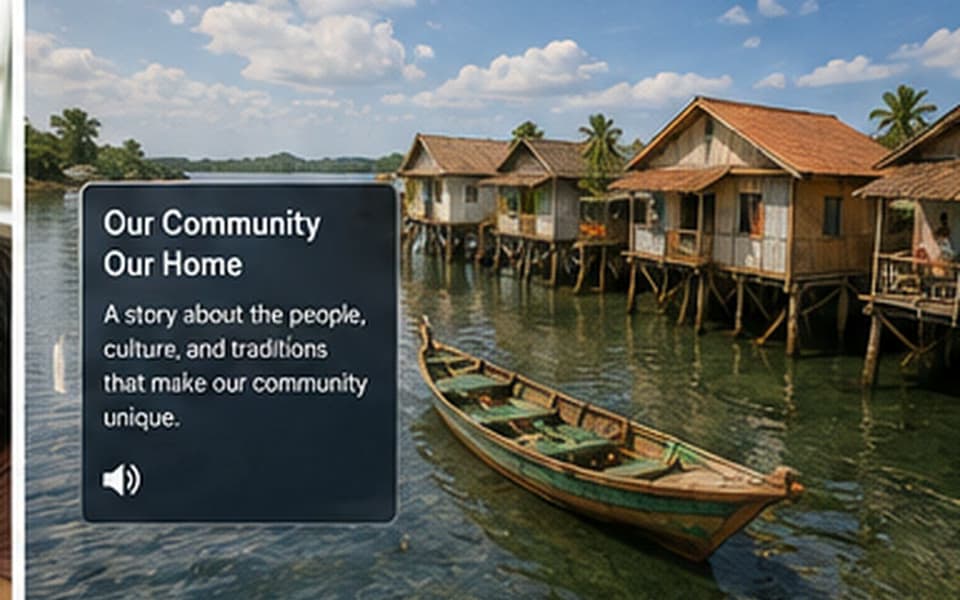
Capture landmarks, local history, neighbourhood change, community voices, or student perspectives and connect them into one immersive story.
Simple licensing
MySense-VR licensing is designed around how many people need to author at the same time, not how many ideas they create.
Create as many MySense-VR projects as you need.
Keep using the software without a yearly software renewal.
Add concurrent authoring licences only when more people need to create at the same time.
The only scaling variable is the number of people who need to author projects concurrently. Check with us for details.
See it in action
Explore MySense-VR walkthroughs, tutorials, classroom examples, and project ideas. Each video includes enough context to help you understand what it covers before you watch.
 00:44
00:44MySense-VR
MSVR (MySense-VR) is an authoring/creation tool for making educational or experiential learning modules for SVR.This tool is unique in that it can be performed completely offline, making this a valuable tool for schools around the world. Get a glimpse of how simple the creation of VR modules can be!
 02:08
02:08MySense-VR
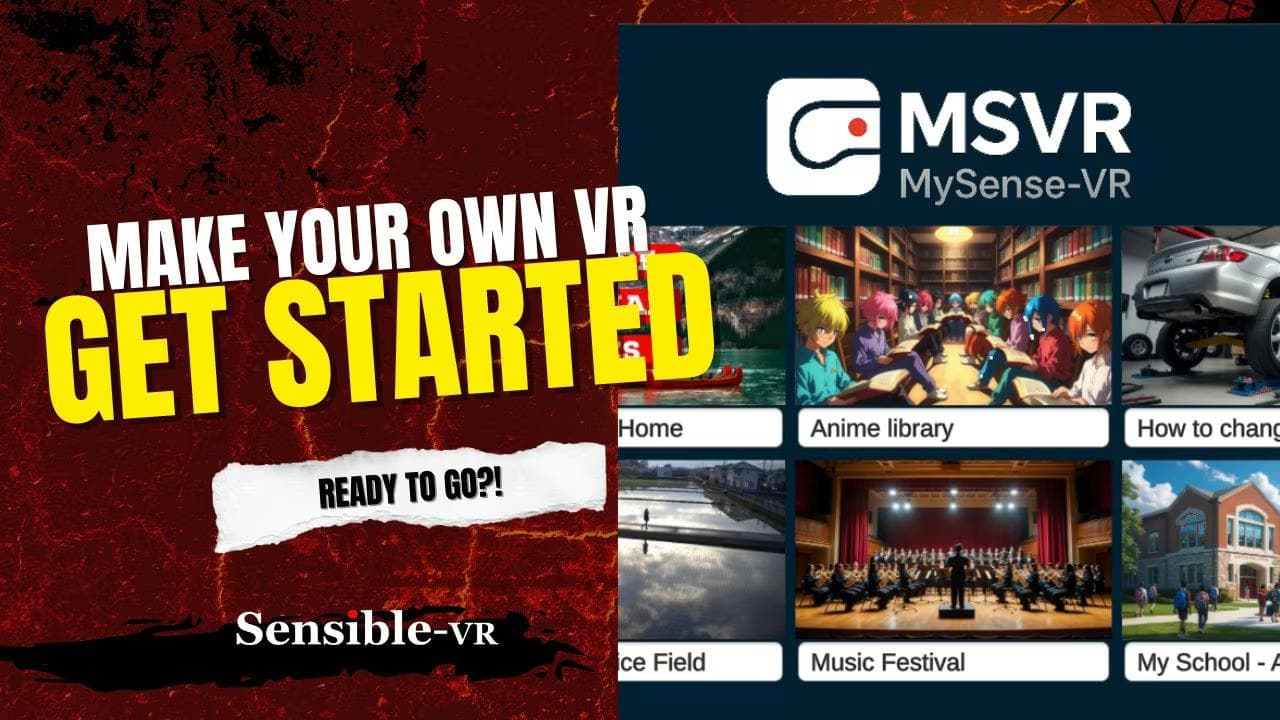
Once the PC version has been installed on your computer, getting going is easy. Open the program and follow along with this video. Pay attention to the orange buttons which allows you to move in and out of editing/viewing modes. Have fun!
 03:23
03:23MySense-VR
Adding media files like audio (mp3), video (mp4), images (jpg/png),PDF is quite easy. Always pay attention to the orange buttons which allows you to move in and out of editing. When there are no orange buttons, you are in View mode, which allows you to understand what it will look like in headset.
 01:20
01:20MySense-VR
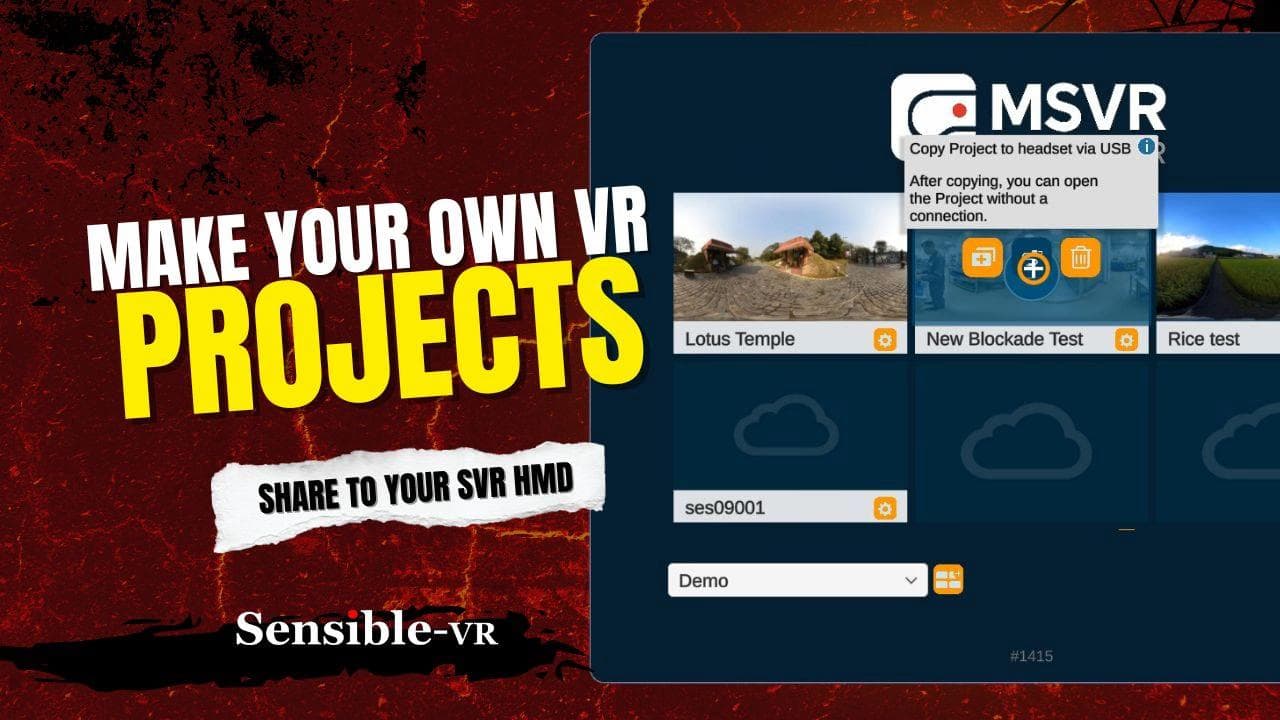
Individual projects are what you create, and we use portals to manage those projects. Use the orange edit button to make changes to the project image, make copies, delete, and so on. This is where you can transfer your creation onto the SVR headset (fully offline!) via USB-C cable.
 05:22
05:22MySense-VR
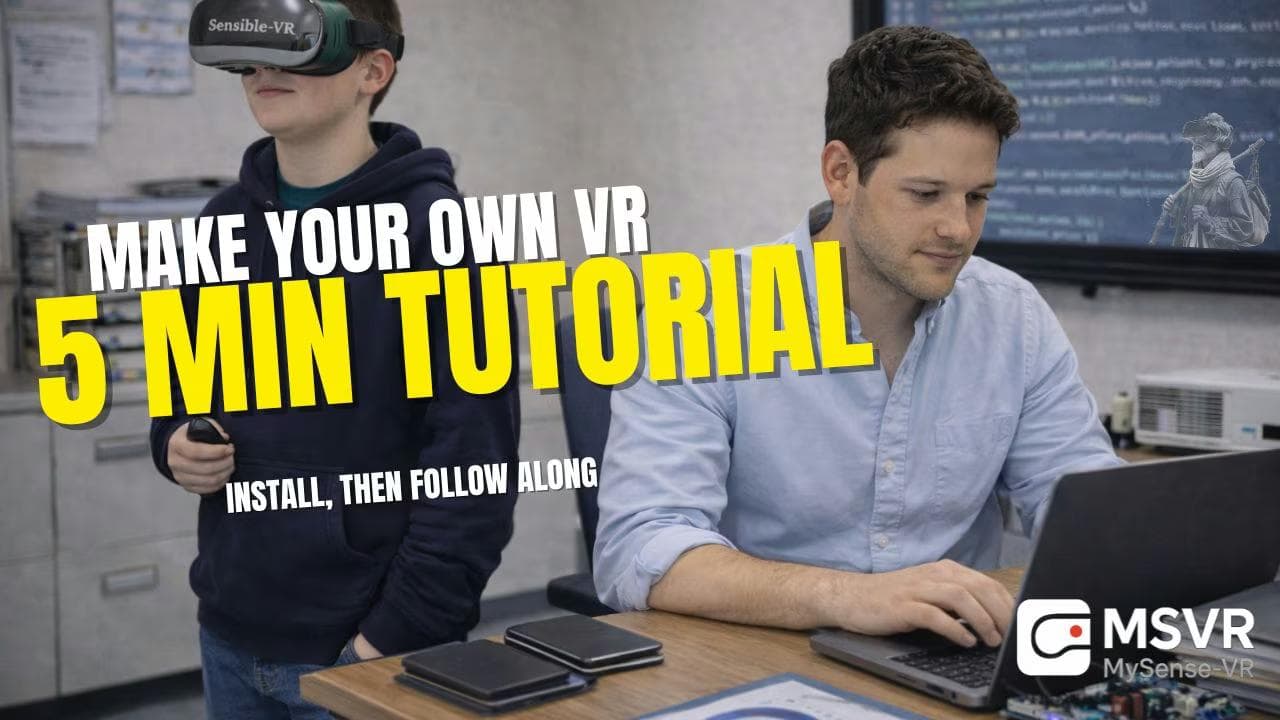
Download and install MSVR on your PC. Follow along with this tutorial to quickly get up to speed on how to make your own VR projects (completely offline!). You'll be amazed at what you can build!
How Sensible Happens
and the rest, as they say, is history.
The journey began in 2016. After years of helping create interactive learning content and spending time in classrooms around the world, one problem kept returning. Many VR authoring tools assumed reliable internet connectivity for moving very large content files back and forth.
That assumption did not match the schools we knew. A practical education tool needed to work whether connectivity was excellent, inconsistent, or simply unnecessary for the lesson.
A trip to Germany connected that educational need with a technical solution that had already taken years to develop. That solution became MySense-VR: an easy way for teachers and learners to create meaningful immersive experiences without making the cloud a requirement.
It's one thing to present educational materials. It's another to make them yourself.
MySense-VR
Take 360° images or video, add the media that brings the idea to life, and build an experience another learner can step inside. We can show you how.
Talk to us about MySense-VR